Poll Feature
Create a Poll
1.Access the posting menu from “Post” displayed at the top or on the left-hand menu of your home screen.
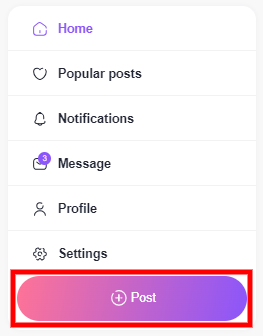
2.Click the Poll icon on the lower left corner of the posting menu.

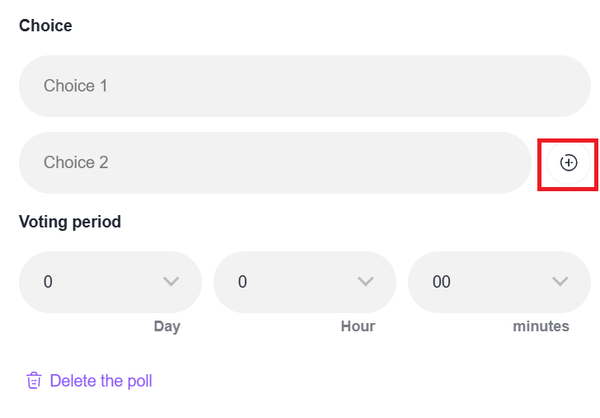
3.Enter the first answer to the poll in the [Choice 1] field and the subsequent answers to the poll in the [Choice 2] field.
You can add more answer fields by clicking the “+” icon. You can set the duration of the poll by setting the [Days], [Hours], and [Minutes].
4.Once you have created your poll, click the “Post” button to apply it to your post.

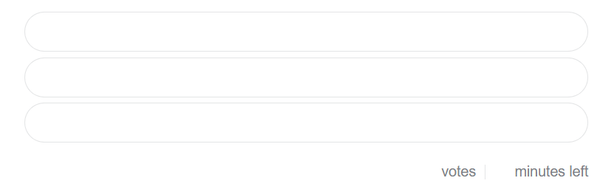
5.The total number of votes and the remaining time until the poll is finished will be displayed below the answers.
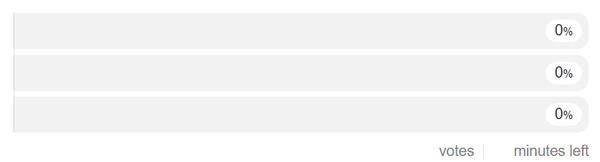
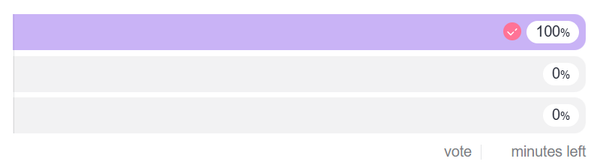
6.The poll will end based on the duration you have set. The answer with the most votes will be highlighted.
Edit a Poll
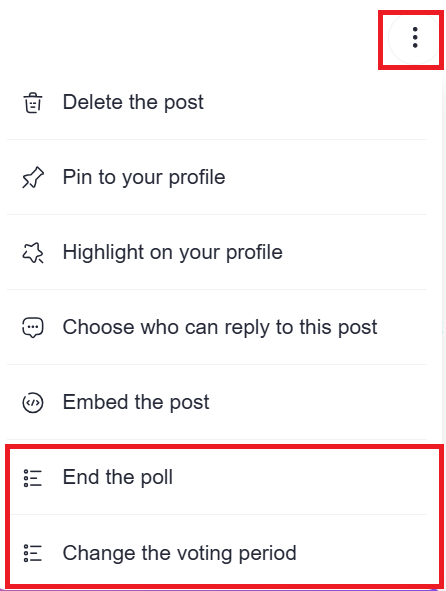
You can click the three-dot icon to end the poll manually or change the duration while the poll is active.
Answering a Poll
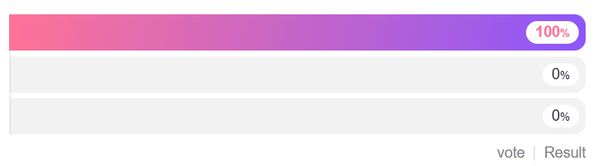
Click or tap a choice within your poll. A checkmark will appear next to the choice you selected for the poll. The total number of votes and the remaining time until the poll is finished will be displayed below the answers.